How to Integrate Google Calendar with OpenEMR for Healthcare Practices
Managing patient appointments is key to improving patient loyalty and satisfaction. To streamline this process, every provider needs a strong scheduling system. Enter OpenEMR—an advanced open-source EMR system known for its flexibility, powerful features, and customization options. With smart OpenEMR Google Calendar integration, providers can effortlessly sync appointments, improve workflow, and enhance patient communication through automated alerts.
The adaptable nature of OpenEMR allows smooth integration with various third-party tools and APIs, making it ideal for practices seeking efficient EMR integration services. Integrating Google Calendar with OpenEMR simplifies scheduling and boosts accuracy, especially when combined with custom OpenEMR enhancements. If you’ve been wondering how to sync Google Calendar with OpenEMR, this step-by-step guide will help you get started.
What Is Google Calendar Integration in OpenEMR?
Google Calendar integration in OpenEMR connects the system’s internal scheduler to Google’s calendar service.
- The OpenEMR team uses a Google API plug‑in to create events in a provider’s or patient’s calendar whenever an appointment is created in the EMR.
- OAuth 2.0 authentication ensures that the connection is secure, and each provider’s Gmail ID is stored in their user settings so OpenEMR knows which calendar to update.
- When a new appointment is scheduled, OpenEMR calls the “CreateEvent” function of the Google Sync class and sends an attendee list so the event appears on both the clinician’s and patient’s calendars.
- This integration extends the open-source patient portal by providing real‑time appointment updates and enabling patients to join appointments directly from their calendar invitation.
Because OpenEMR is highly customizable, the integration can be tailored to your OpenEMR tech stack. Practices often add a field to the OpenEMR patient portal where a patient’s Gmail ID is stored.
When the portal and scheduler are integrated, appointment information is immediately added to both the patient’s and the provider’s calendars, eliminating the need for manual export.
The result is a bidirectional, cloud-based scheduling workflow that enhances patient experience while lowering administrative workload.
Benefits of Google Calendar Integration for Healthcare Practices
Integrating Google Calendar with an EMR may appear to be a convenience tool, but it actually provides operational benefits for both physicians and patients.
Reduce no‑shows and missed visits
After integration, Google Calendar sends automatic reminders to both the provider and the patient. CapMinds notes that these alerts dramatically cut down on missed appointments. A HIPAA-compliant patient portal built on OpenEMR allows for personalized reminders that match your practice’s workflow.
Eliminate double‑bookings and scheduling conflicts
A unified calendar prevents clinicians from being booked in two places at once. ClinikEHR explains that a properly synced calendar gives providers “a single source of truth” and protects their boundaries by automatically blocking out personal time.
Improve patient experience and engagement
When patients receive appointment invitations via Google Schedule, they can accept them, add them to their personal schedule, and receive timely notifications. The integration supports the patient portal EMR integration by keeping patients up to date without requiring them to log in to the portal for each update.
Streamline workflow across devices
Google Calendar events are synced between computers and mobile devices, allowing employees and patients to access their calendars from anywhere. This is especially true for cloud EMR patient interfaces, where accessibility and mobility are essential.
Enhance data accuracy and reduce manual work
Manually entering appointments in multiple places leads to mistakes. By transferring appointment data directly from OpenEMR to Google Calendar, the integration assures consistency and allows staff to focus on patient care.
How to Integrate Google Calendar with OpenEMR for Appointment Scheduling
Before starting, what you can expect from this integration process?
After integrating Google Calendar with OpenEMR, once the patient appointment has been scheduled, the notification will be sent to the patient’s g-mail ID. So, that patients will easily join the scheduled appointment, which reduces no-shows and missed appointments.
1. Installing and Configuring OpenEMR
Firstly, install OpenEMR and setup configure the OpenEMR. This process may involve many technical steps, and carefully executing each step is crucial to avoid any errors.
Need guidance in installing OpenEMR? Here are the resources:
- How to Install OpenEMR on Linux 2024 – CapMinds
- The Ultimate Guide to OpenEMR Complete Installation 2024 (MacOS) – CapMinds
- How to Install OpenEMR on Windows 2024 (The Ultimate Guide) – CapMinds
After successfully installing OpenEMR, it is essential to set up and configure the OpenEMR for your healthcare practice. This process involves setting up the OpenEMR with your clinical information.
2. Download & Register Google Calendar
Now, download Google Calendar on your device and register with the g-mail ID. (For IOS: Go to Appstore; For Android: Go to Playstore). Then log in to OpenEMR with registered credentials.
3. Adding a New Patient to the System
To schedule an appointment for a patient, it is necessary to add the patient to the OpenEMR system. This process involves adding new patients with all the required details.
To create a New Patient, follow the below navigation:
Go to Patient – New/Search
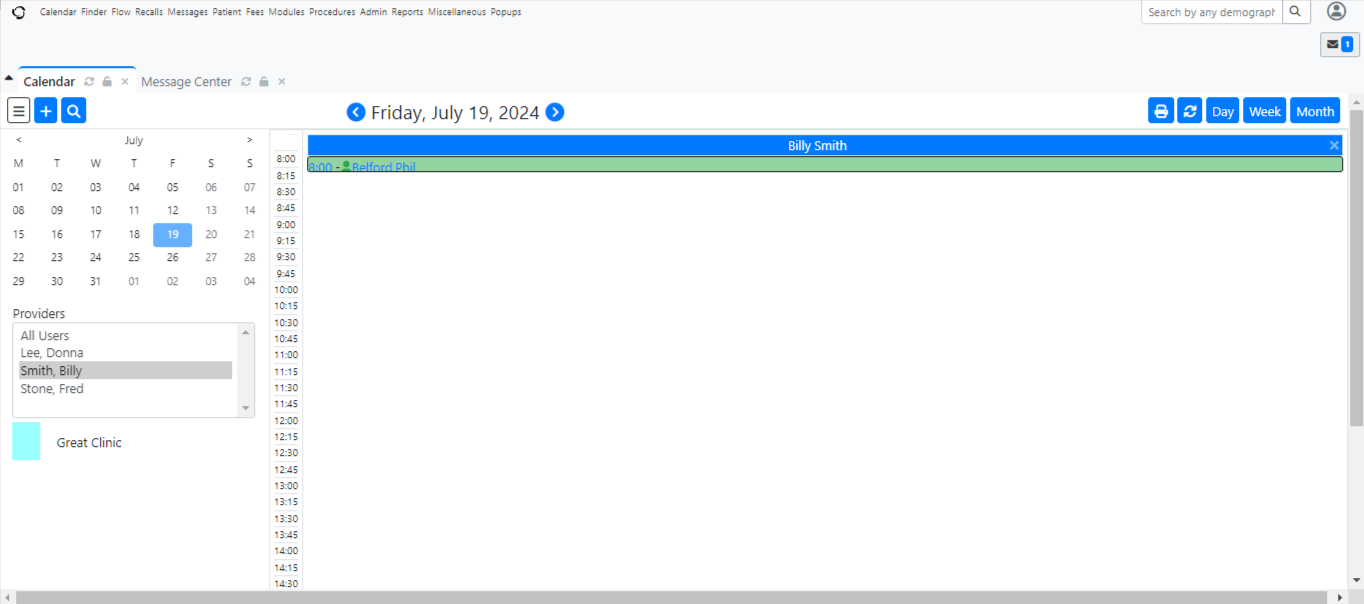
You will be redirected to the Search or Add Patient dashboard.
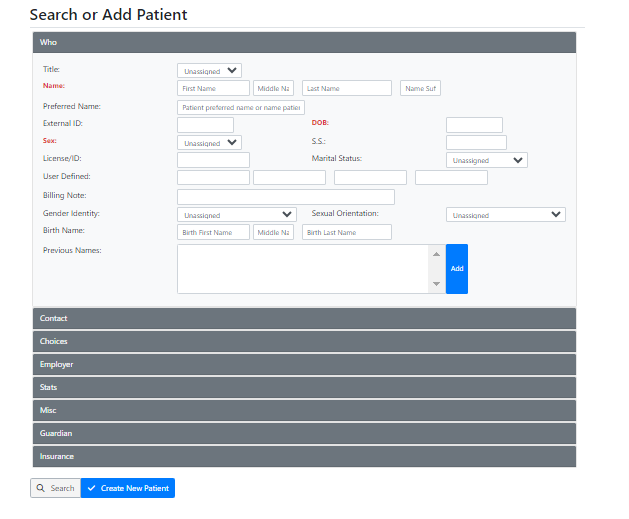
Fill in all the required details of the patient (e.g. Name, External ID, Sex, DOB).
In the choices menu, there will be an option “Gmail ID for Google Calendar Notification” (This option is only enabled if the OpenEMR is customized).
In that field, you need to be required to enter the patient’s Gmail ID.
4. Setting Up Google Calendar Notifications for Healthcare Providers
As a healthcare provider, you can also enable Notification if you want to get notified of the patient’s appointment. This option will be enabled only if the OpenEMR is customized for Google Calendar Integration.
After customization, you can go to Username – Settings – Google Calendar Notification – Enable Gmail Account.
5. Configuring Google Calendar Integration
After customizing and setting up Google Calendar notifications, you need to configure the Google Calendar Notification to receive automatic invitations.
To do that, log in to the Google Calendar using the registered mail ID.
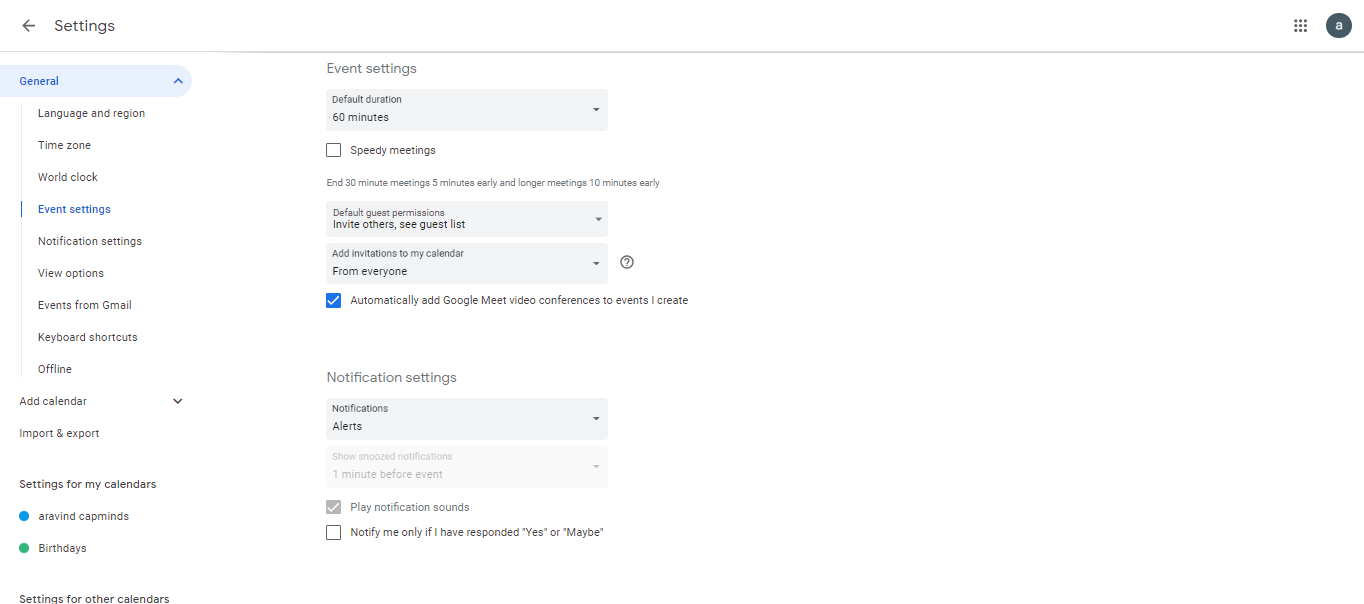
Now, you have to change the settings to receive notifications automatically. Follow the below navigation:
- Log in to Google Calendar using your registered Mail ID
- Go to settings – General – Event Settings
- Automatically add invitations or Add invitations to my Calendar (Select the preferred option)
6. Scheduling a Patient Appointment
You can now schedule the patient appointment using the OpenEMR Default Calendar dashboard.
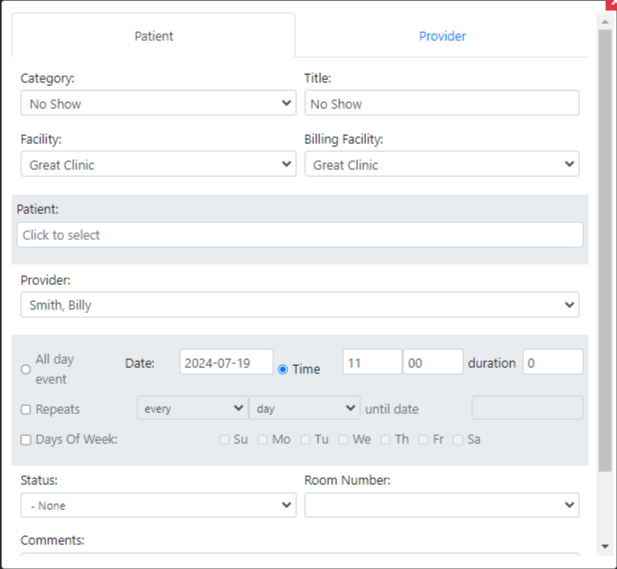
- Go to the OpenEMR Calendar dashboard – Click anywhere within the calendar.
- An appointment scheduling form will pop up.
- Select a category (e.g. office visit) and Give a title for the appointment.
- Select facility and billing facility options.
- Click on the patient field and select the patient you want to schedule an appointment with.
- Modify the date and time of the appointment
- Enter all the other necessary information in the respective fields.
- Click save
The appointment for the patient will be scheduled.
If the patient’s Gmail ID (Which you entered previously) is available, the appointment notification will be created automatically in the patient’s Google calendar.
The physician’s Google Calendar will immediately create a notification if the service provider’s Google Calendar notification is enabled with Gmail ID.
7. Appointment Alerts and Reminders
You have successfully integrated Google Calendar with OpenEMR.
The scheduled appointment will be created automatically in the Google Calendar. Both provider and patient will join the appointment using the Google Calendar.
Google Calendar system will send alerts and reminders for appointments, significantly reducing no-shows and missed appointments and increasing patient satisfaction.
Common Google Calendar and OpenEMR Integration Challenges
While integration can be powerful, healthcare practices often run into a few recurring issues:
One‑way sync: Many implementations only send events from the EMR to Google Calendar. If events from Google are not pushed back into the EMR, providers may double‑book themselves. A robust integration must support two‑way updates or, at minimum, allow Google events to block availability.
Delayed or missed syncs: If the sync is done on a schedule rather than in real time, a last-minute update may not be displayed until it’s too late, confusing. The integration should use event-based triggers or background listeners to update calendars instantly.
Lack of control and privacy: When all events are synchronized, the calendar may get cluttered. Clinicians may be apprehensive about disclosing personal appointments to practice employees. Choose an integration that lets you sync certain calendars while keeping personal information hidden from shared views.
Authentication and maintenance: Connections can break if OAuth tokens expire or API keys change. Practices must monitor the integration and renew credentials when needed. Because OpenEMR is an open-source patient portal, updates to the tech stack may also require changes to custom integration scripts.
HIPAA and security concerns: Free Gmail accounts are not automatically HIPAA‑compliant.
Google Calendar can be used in a HIPAA‑aligned way only when you have a Business Associate Agreement with Google under a Google Workspace subscription. Organizations must limit the information contained in event descriptions and implement access controls.
CapMinds OpenEMR Customization and Integration Solution
Need assistance with OpenEMR for your healthcare practice? Trust CapMind’s expert OpenEMR customization and integration services. As a leading health tech company, we understand the unique challenges you face.
Our tailored solutions ensure a seamless transition to OpenEMR, maximizing efficiency and minimal workflow disruption. Our Service includes:
- Customized setup to fit your specific needs
- A low-cost solution for your practice’s long-term future.
- Comprehensive staff training and ongoing tech support.
- Modern User Interface (UI) customization
- Integration with third-party tools and APIs
Don’t let outdated systems hold you back. Embrace the future of healthcare management with OpenEMR. Our experienced team will guide you every step of the way, from initial consultation to full implementation.
Contact CapMinds today for a free consultation and discover how OpenEMR can transform your healthcare delivery.
Frequently Asked Questions
How does Google Calendar integration improve appointment scheduling in OpenEMR?
The Google Calendar integration automates scheduling and reduces administrative workload. When you schedule an appointment using OpenEMR, the system automatically adds an event to the patient’s and provider’s calendars, eliminating the need to manually copy information. Google Calendar invites and reminders can help reduce no-shows and missed appointments.
The integration eliminates double booking by providing a consolidated view of each provider’s availability. For practices that use a personalized patient portal, this implies fewer phone calls and emails to confirm appointments, as well as higher patient and staff satisfaction.
Can OpenEMR automatically send appointment reminders through Google Calendar?
Yes. When the Google Calendar connection is enabled in OpenEMR, booking a patient appointment creates an event invitation and reminder. After scheduling, appointment notifications are automatically added to both the patient’s and physician’s calendars. Google Calendar’s built-in reminder feature sends warnings before the appointment.
This automatic reminder workflow improves OpenEMR’s patient portal capabilities, allowing practitioners to reduce no-shows without using manual calls or third-party apps.
Is Google Calendar integration with OpenEMR HIPAA-compliant?
Google Calendar can be utilized in HIPAA-compliant workflows; however,, it is not compliant by default. You must execute a Business Associate Agreement with Google under a Google Workspace plan and configure security settings to meet HIPAA requirements.
That includes limiting calendar invitations to the minimum necessary information and avoiding diagnoses or sensitive details. If you utilize the OpenEMR patient portal, follow the same guidelines: use patient IDs or generic titles, and set Google Calendar to private visibility to protect patient privacy.
Can multiple healthcare providers sync their schedules with Google Calendar in OpenEMR?
Yes. The integration allows each provider to create their own Gmail account or Google Workspace calendar. During setup, OpenEMR stores the provider’s email address and syncs each appointment to the relevant calendar. When multiple providers work in the same practice, OpenEMR generates separate events for each, and the integration distributes the attendance list so that events appear on all relevant calendars.
This simplifies group practice scheduling and ensures that each clinician has a clear, personalized view of upcoming appointments on their mobile and desktop devices.